Comment answers and voice broadcast
Read the live webpage comments, generate answers based on current product information, and play the voice through a computer or an Android phone in the same LAN.
Make live interaction more relaxed. Combining product information to generate comment answers and voice broadcasts can also assist in explaining live broadcasts, helping anchors balance interaction and explanation.
Consulting products ↗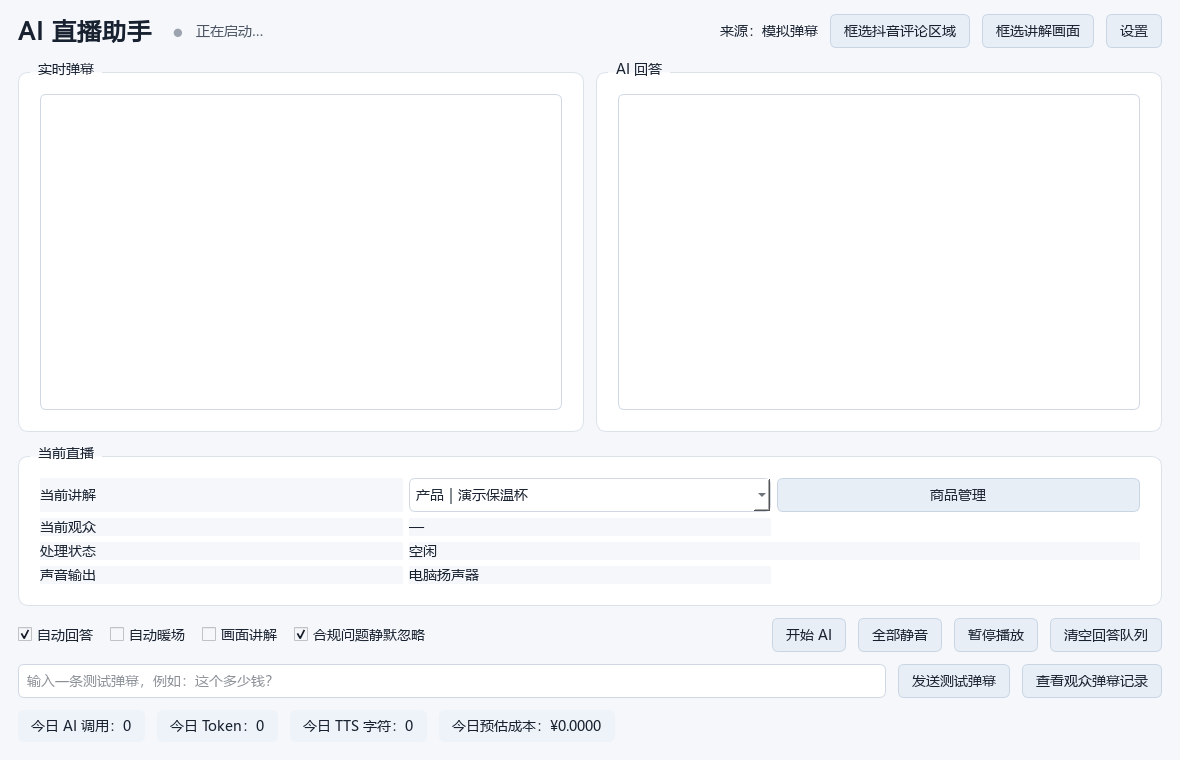
Read the live webpage comments, generate answers based on current product information, and play the voice through a computer or an Android phone in the same LAN.
Frame the live broadcast image and generate a live explanation based on the selected scene; the system will try to skip repeated scenes.
Organize product names, specifications, features, frequently asked questions, sales pitches, and banned words, so that answers can refer to the confirmed information.
Check the status of barrages, AI answers and playback, and also check the recording and processing of audience barrages.
Open and log in to the Douyin live webpage and keep the live broadcast screen and comment area visible.
Select a product or scene and select the comment area; if you need a screen explanation, select the live broadcast screen.
Confirm the sound output of the computer or Android phone, send a test barrage, and check the text and sound.
Start the AI when you're ready; use manual takeover, mute, or pause playback during the live broadcast.
The software runs on Windows computers. AI answering, picture understanding and speech generation depend on network and related service configurations. When using a mobile phone to broadcast, the mobile phone and computer must be in the same local area network.
When screen explanation is enabled, screenshots of selected areas will be sent to Alibaba Cloud for analysis. Product information needs to be verified in advance; errors may occur in identifying and generating content, and manual observation and timely takeover are required during the live broadcast.
After the browser position, zoom ratio or monitor layout changes, you need to re-select the frame. It is recommended to use actual equipment and images for a trial broadcast before the official live broadcast.
Contact Shawn via WeChat or WhatsApp to chat about your live streaming needs.
Product screenshots show the Chinese-language software interface.